How to get 60 FPS in GTA VI with SmoovPlay
Generate 60 FPS output from a 30 FPS stream with PS5 Remote Play and a PC: SmoovPlay setup, settings and limitations.
These instructions are based on the published sources below. GGFLEX has not tested the steps in-game.
What actually becomes 60 FPS
SmoovPlay generates extra PS5 stream frames on a PC, where you watch and play; the engine stays at 30 FPS. The developer’s GTA VI demo uses recorded Rockstar footage. Their live gameplay test uses Gotham Knights. GGFLEX has not tested GTA VI with this setup.
What you need
PS5 with the game, Windows 10/11 x64, 8 GB RAM, 12 GB for setup, and a 60 Hz or faster screen. RTX 30/40/50 are listed; an RTX 4070 Ti SUPER was actually tested. Wire the PS5 and PC to your router or use 5/6 GHz Wi-Fi. Connect the controller to the PC.
1. Enable Remote Play on PS5
On the console, go to Settings → System → Remote Play and enable Remote Play. To connect while it is resting, also enable Stay Connected to the Internet and Enable Turning on PS5 from Network under Settings → System → Power Saving → Features Available in Rest Mode. The console still runs the game.
2. Install SmoovPlay and connect the console
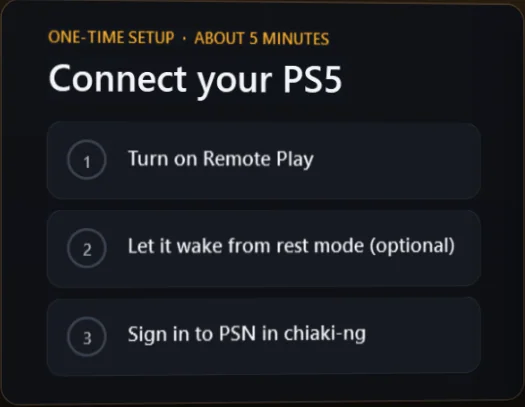
Download SmoovPlay-Setup.exe from the project’s Releases page. Compare its SHA-256 with the release listing; the installer is currently unsigned. Complete setup, then follow Connect your PS5: sign into PSN through chiaki-ng and register the console. Run Auto-detect in Settings after changing your display or hardware.
3. Set the output to 60 FPS
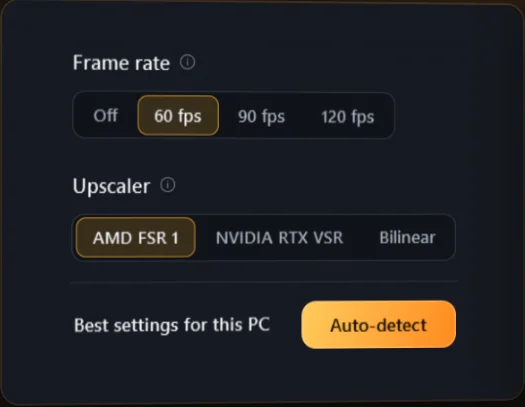
Select 60 FPS output in Settings and press Play. In the video window, M opens settings and F enters fullscreen. Version 0.3.1 added Settings → Smoothness → Game frame rate: 30 fps. The developer recommends this input mode for locked-30 games to avoid automatic detection errors. That is the source game’s rate; keep the output at 60 FPS.
4. Compare smoothness and latency
I toggles frame generation for comparison, S shows statistics and L tests latency. Disable other frame generators for SmoovPlay and chiaki-ng: NVIDIA Smooth Motion, AMD Fluid Motion Frames and Lossless Scaling. The developer estimates about 20 ms extra at 60 FPS, on top of Remote Play latency. The input is 1080p, and HUD elements or thin objects may show artifacts.
Can I use it without a PC, or with Xbox?
This workflow requires a PC. Xbox app capture, capture cards, AMD and Intel Arc are experimental, without full testing on the corresponding hardware. Check the project’s current compatibility notes before buying equipment.